
Once you’ve built your reporting form(s), the next step is to set up the Event record view—this is where all event-related information is stored and managed.
The Event record includes:
-
The original form submitted by the reporter
-
Follow-up fields used for investigation and analysis
-
Any corrective actions related to the event
-
Updates in the activity feed (on the right side)
In this step, you’ll customise the Details tab (see screenshot below), which contains the follow-up fields for investigation.
Note: The Details tab is the source of data for your analytics dashboard—not the reporting form. Make sure the fields here capture everything you want to report on.
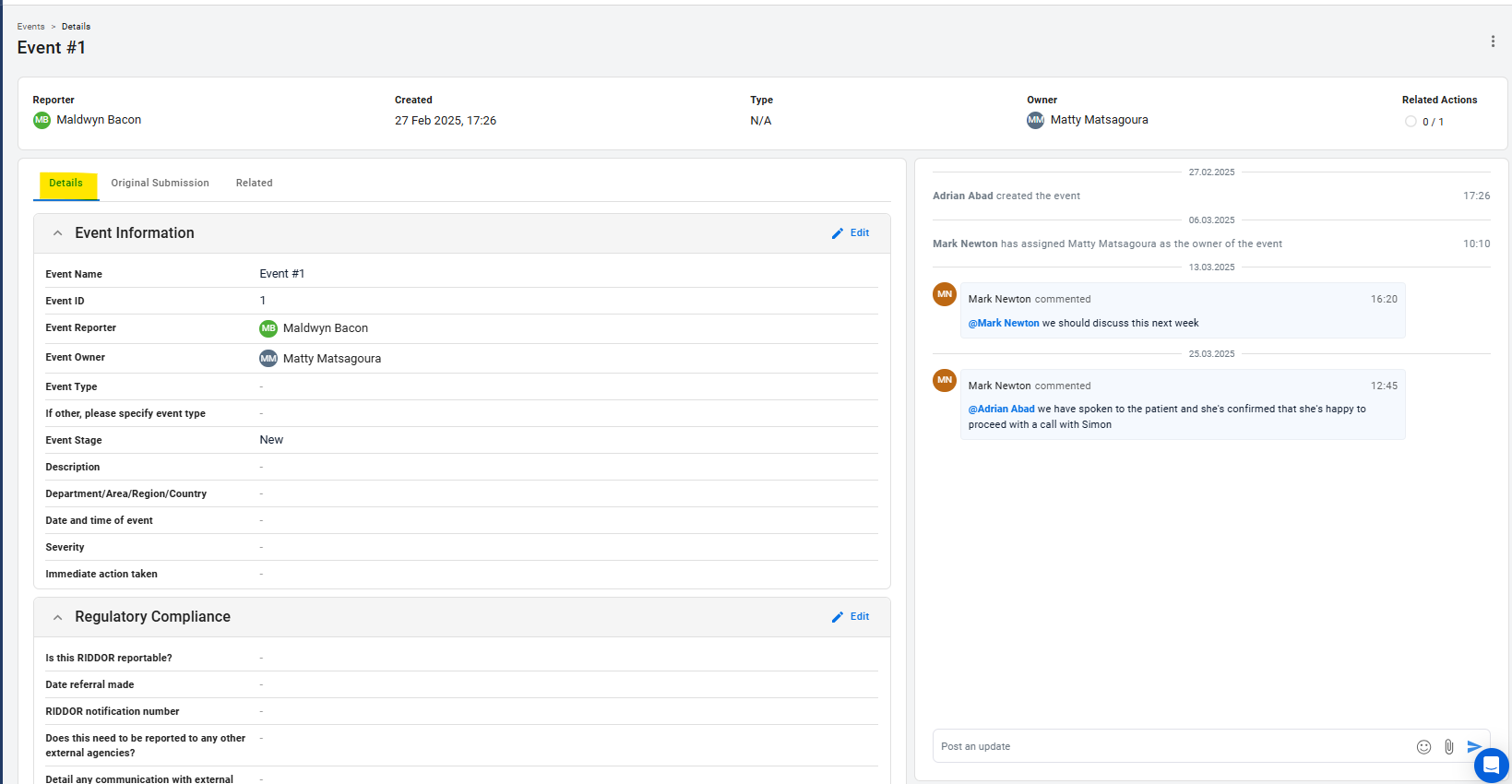
Please take a look at the step-by-step guide below or the video tutorial, whichever format works best for you.
Start by creating the fields you'll need in the Field Manager (found in the Object Manager).
Each field represents a piece of information you want to track—whether it’s a date, dropdown selection, or text entry. These fields will:
-
Store form responses
-
Display in the Details tab of the Event record
-
Feed data into your analytics dashboard
For every question you want to analyse or track, create a corresponding field. Choose the most appropriate field type (e.g. dropdown, date picker, text) to ensure accurate and structured data.
Important: Mapping form questions to fields for reporting
To ensure data from your forms appears correctly in reports and dashboards, each form question must be linked to a corresponding field in the Object Manager. For the mapping to work correctly:
-
The field type (e.g. dropdown, text, date) must match between the question and the field.
-
For dropdowns, the options must be identical in both the question and the field.
If a question isn’t mapped to a field, or if the values don’t match, the data won’t be pulled through to the event record and won't be available for reporting.
👉 Learn how to create fields in the Field Manager by following this article.
2. Build your Event record view in the Layout Editor
Once your fields are ready, use the Layout Editor (found in the Object Manager) to design the layout of your Event record.
Here, you can:
-
Group fields into sections
-
Organise the layout to suit your workflow
👉 Learn how to do this using the Layout Editor in the Object Manager tab by following this article.
After setting up your Event record, the final step is to map your form questions to the corresponding fields. This links submitted data directly to the Event record and ensures it’s available for reporting.