
Dropdown questions let reporters select from a set of predefined answers, helping to keep data consistent and easy to report on.
You might need to adjust these options to reflect your organisation’s current language, remove options that are no longer relevant, or record new information such as a new department or event type.
When you edit dropdown options in a form, the same changes must also be made to the dropdown options in the linked field in the Field Manager. This keeps your form and field mapping aligned so that responses are stored correctly in your event records and analytics.
Follow the step-by-step instructions or watch the video guides available below.
Adding new dropdown options
You can add new options when you need to capture additional information, for example, when a location has opened or a new type of event is being recorded.
In the Form Builder
-
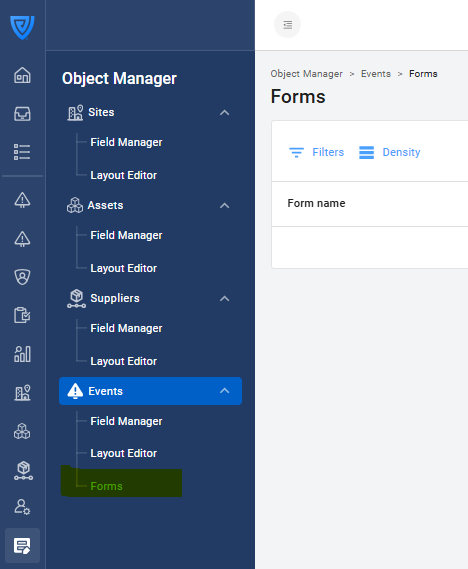
Go to Object Manager → Events → Forms.
-
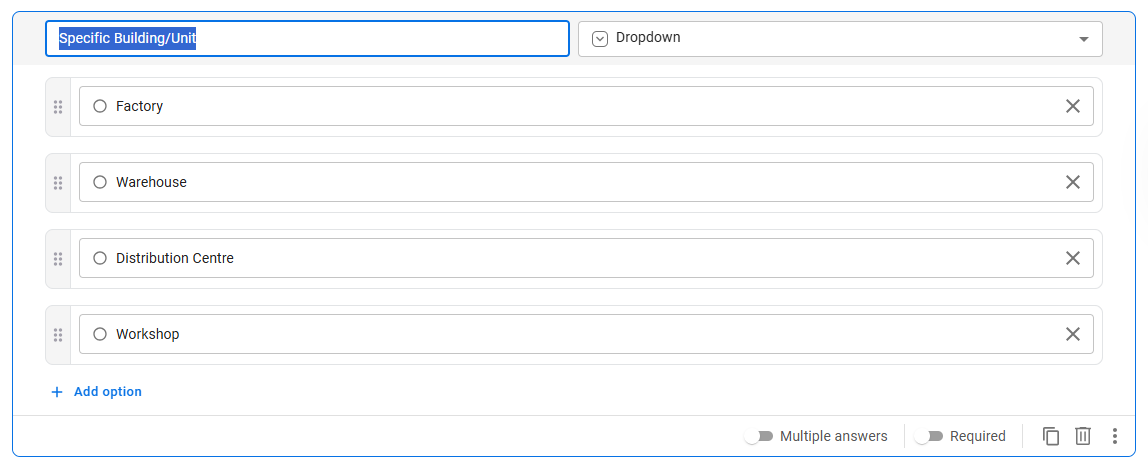
Open the form and click on the dropdown question you want to update.
-
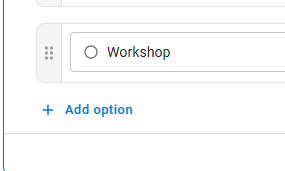
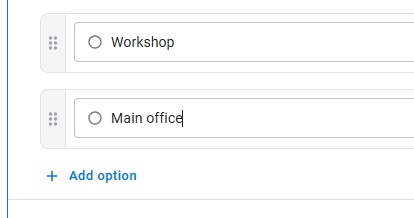
Click Add option and type the new value.
-
Click Publish to save your changes.
In the Field Manager
-
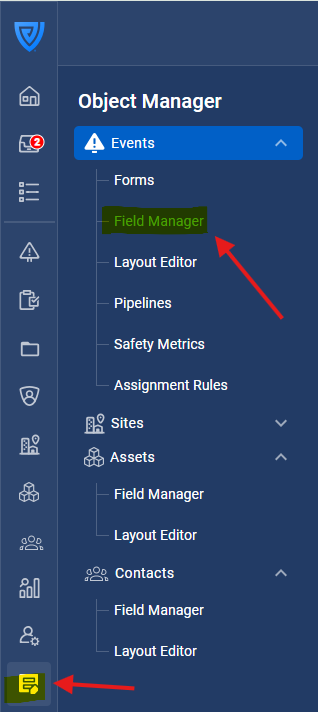
Go to Object Manager → Events → Field Manager.
-
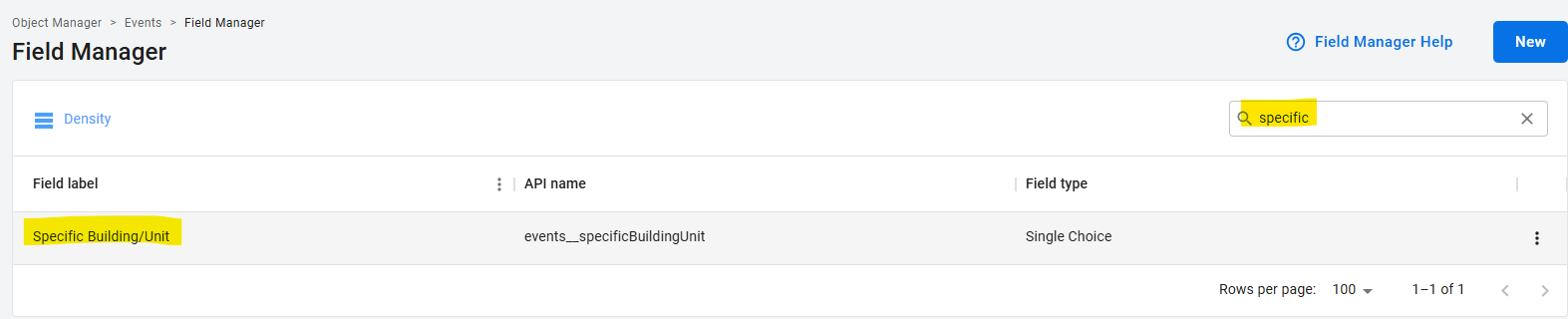
Locate and click on the field that the question you recently added the drop-down to is linked to (check out the video below for additional guidance).
-
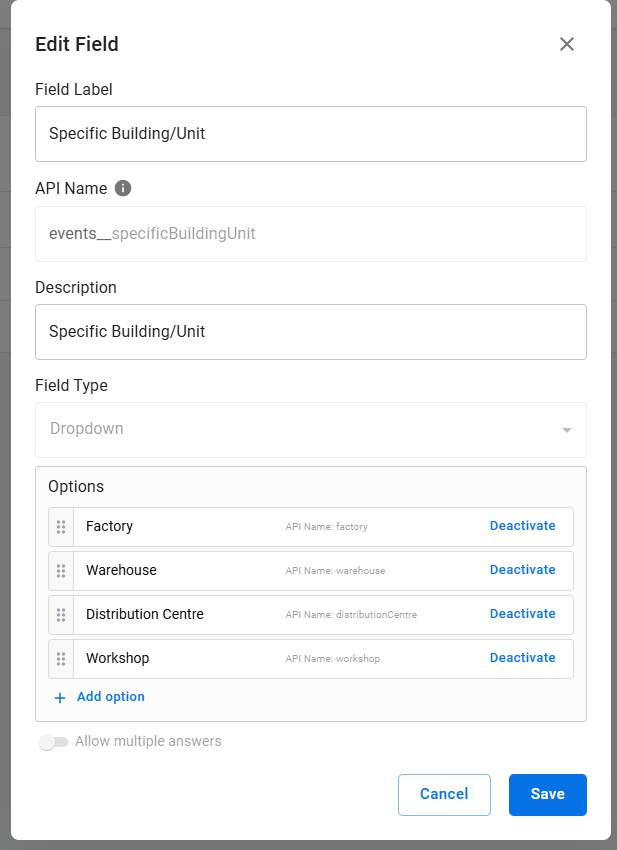
Click Add option and add the same new option to the list of values. Make sure that you type it exactly the same way that you wrote it in the form question. Better yet, copy and and paste it directly. The mapping is case sensitive and sensitive to spaces and punctuation so make sure it matches exactly.
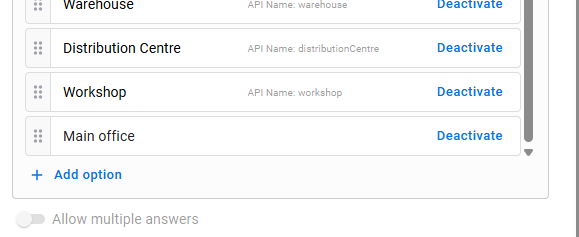
-
Click Save.
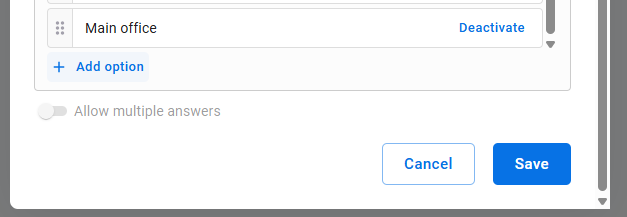
Tip: Always add new options in both the form and the field. If you only add it to the form, the data will not map from the form question to the field, and the data will not be stored correctly in event records or in your reporting dashboard.
If you have multiple forms, and the same question is asked in each form (e.g., Department, Type), you will also need to ensure you add the new option to those form questions as well.
Renaming existing dropdown options
You may need to rename dropdown options to reflect updated internal terminology or make the options clearer for reporters.
In the Form Builder
-
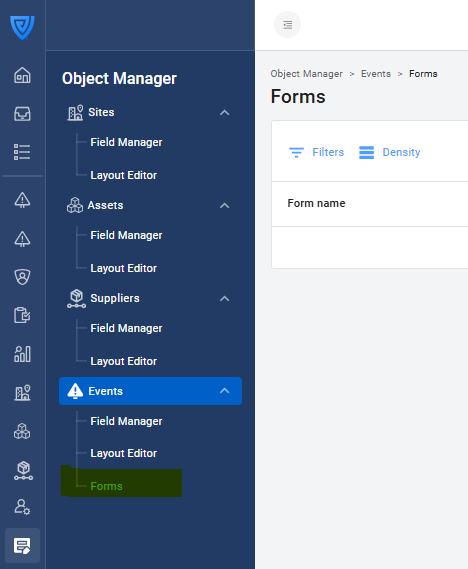
Go to Object Manager → Events → Forms.
-
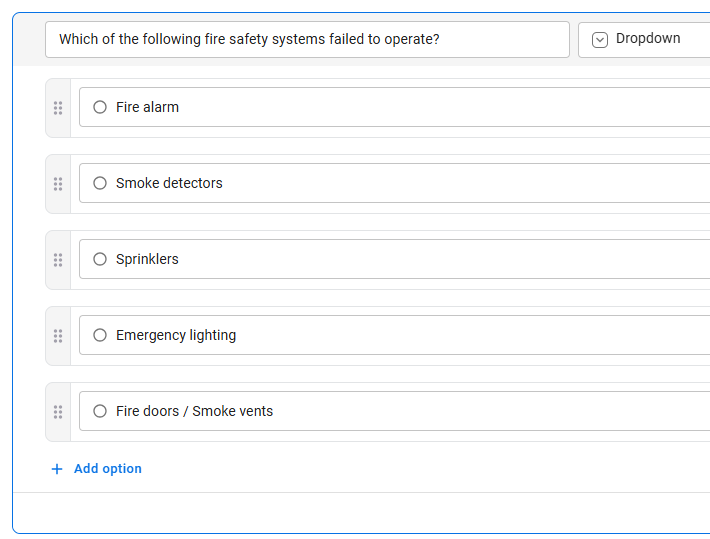
Open the form and click on the dropdown question.
-
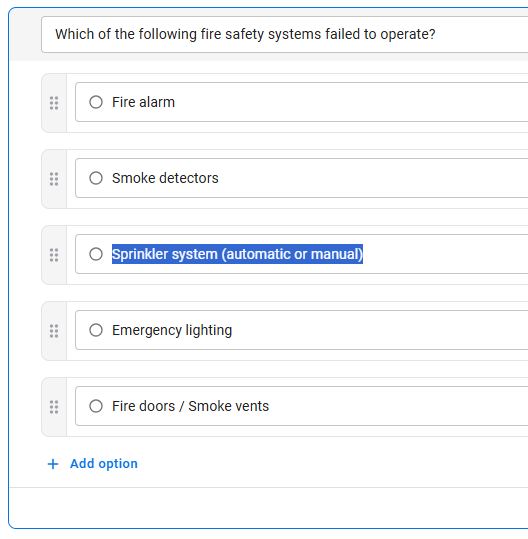
Edit the text of the option you want to rename.
-
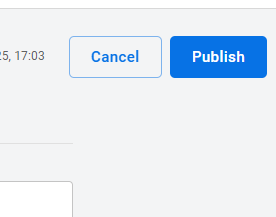
Click Publish to save your changes.
In the Field Manager
-
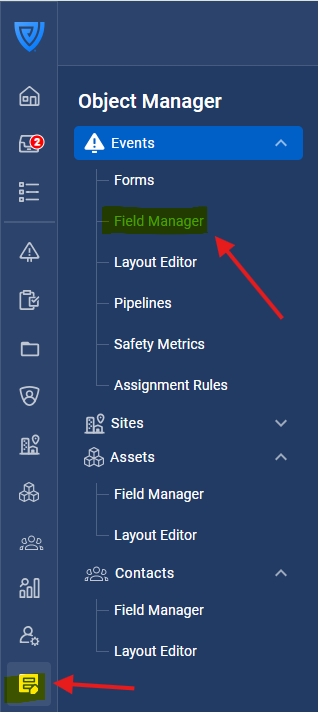
Go to Object Manager → Events → Field Manager.
-
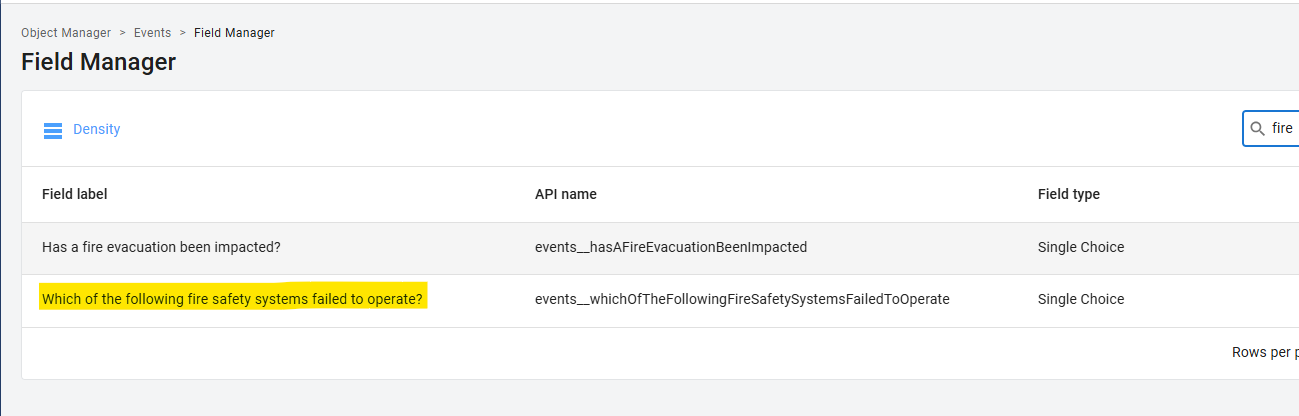
Find and open the field linked to the dropdown question.
-
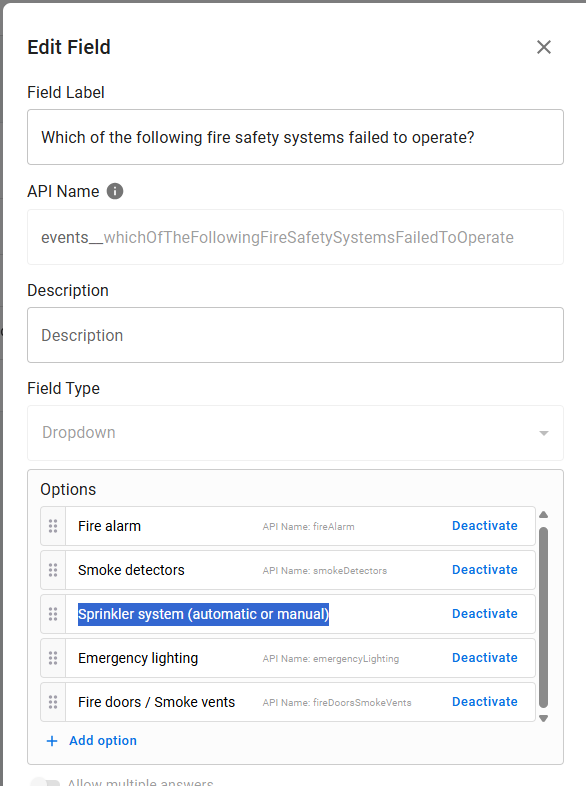
Update the same option name so it matches the form exactly.
-
Click Save.
Note: If the meaning of the option changes, it’s best to create a new option rather than renaming the existing one.
When certain dropdown options are no longer needed, you can remove them to keep your forms clean and relevant. Avoid deleting options that already have data stored; instead, deactivate them if possible.
In the Form Builder
-
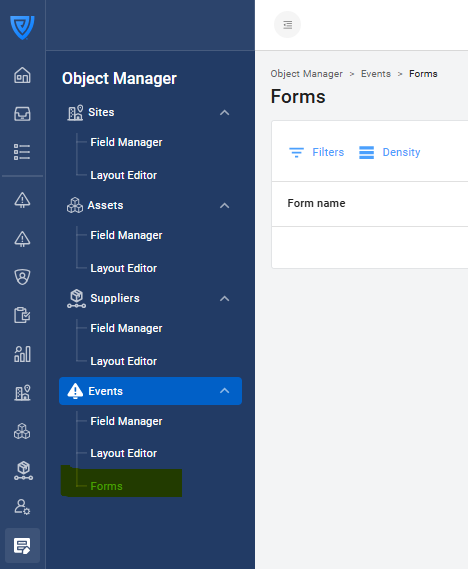
Go to Object Manager → Events → Forms.
-
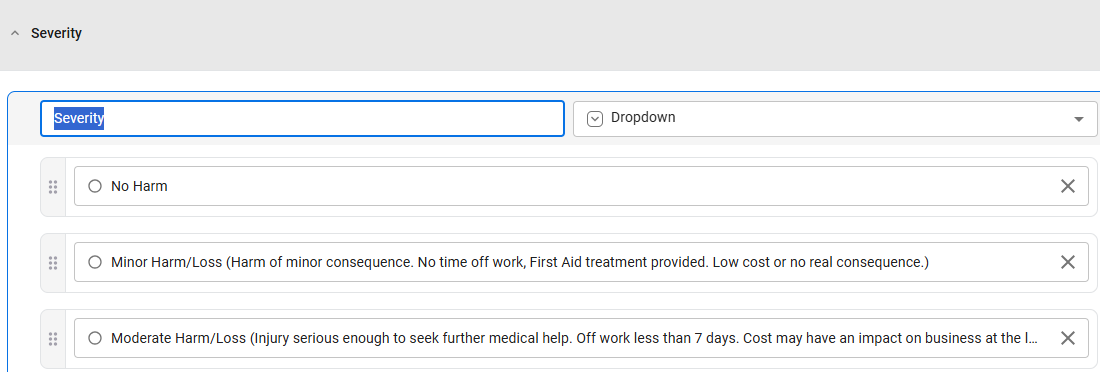
Open the form and click on the dropdown question.
-
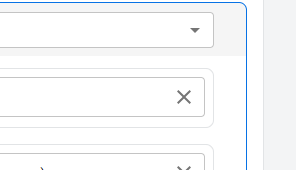
Click the X next to the option you want to remove.
-
Click Publish to save your changes.
In the Field Manager
-
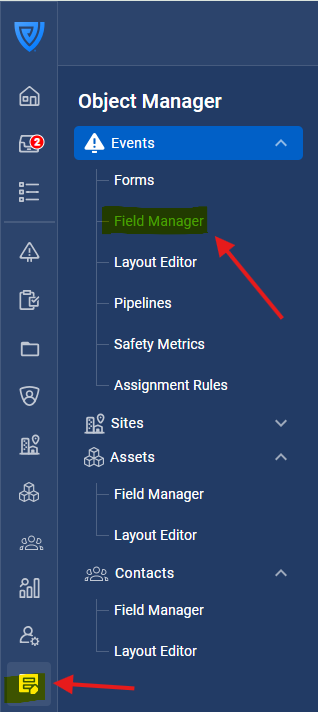
Go to Object Manager → Events → Field Manager.
-
Find the linked field.

-
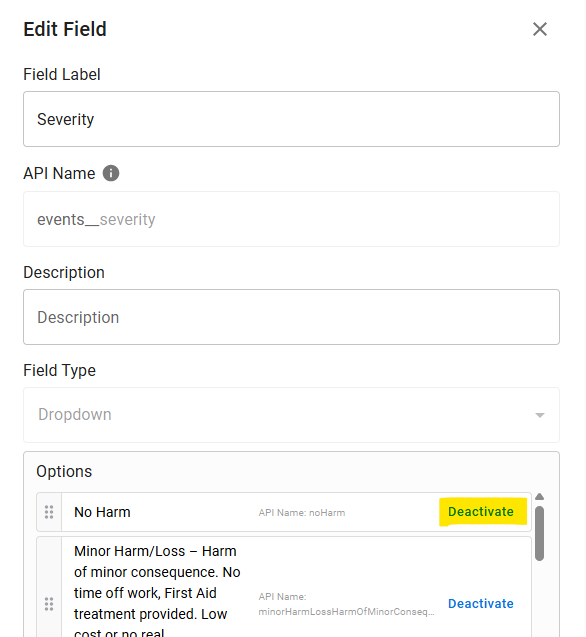
Deactivate the same option to keep both lists consistent.
-
Click Save.
Tip: If you delete an option that already has responses stored, existing records will still display the old value, but it will no longer be selectable for new submissions.
Best practice
-
Keep dropdown options consistent across forms and fields.
-
Review your dropdown lists regularly to ensure they reflect your current terminology and needs.
-
If you are changing the meaning of an option, create a new field instead of reusing the old one.