
Applies to user roles: Account Owner, Manager, User
Available on platforms: Vatix Workspace web app, Vatix app (formerly Protector Mobile app)
Note: The Protector Mobile app was renamed to the Vatix app on 5 October 2026. Read more about the rename.
Note: There are two versions of Audits: classic and new. To check which one you're using, go to 'Audits' in the left sidebar in Vatix Workspace. If you see 'Forms' underneath it, you're using the classic version. If you see 'Overview', you're using the new version. Where the steps differ, each heading says which version it's for. Everything else applies to both.
Linking an Audit to the records it covers keeps related information connected. An Audit linked to a Site, Asset or Contact shows on that record's 'Related' tab, alongside its other records.
Classic version: how to link an Audit
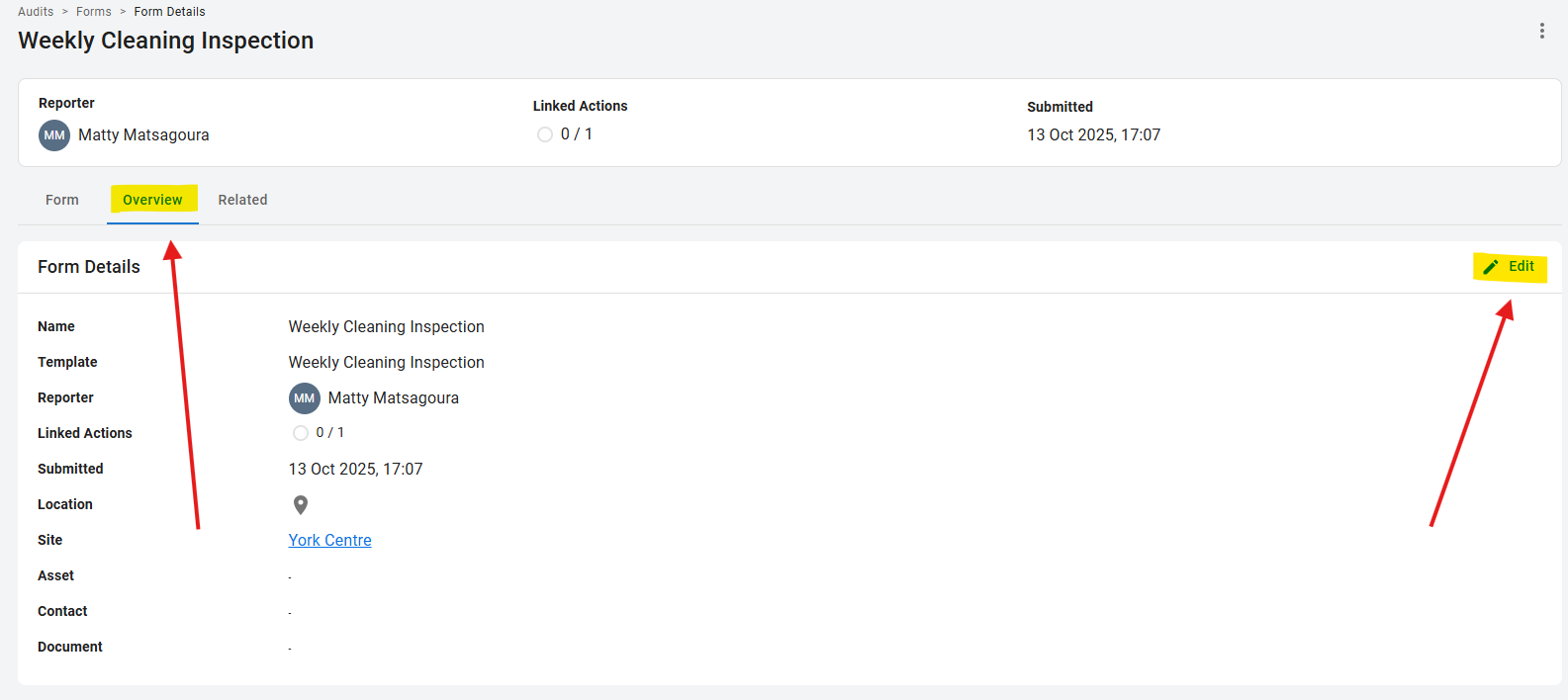
In the classic version, you link a completed Audit from its 'Overview' tab in the Vatix Workspace web app.
- Go to 'Audits' > 'Forms'.
- Open the Audit you want to link.
- Click the 'Overview' tab, then click 'Edit' on the right.
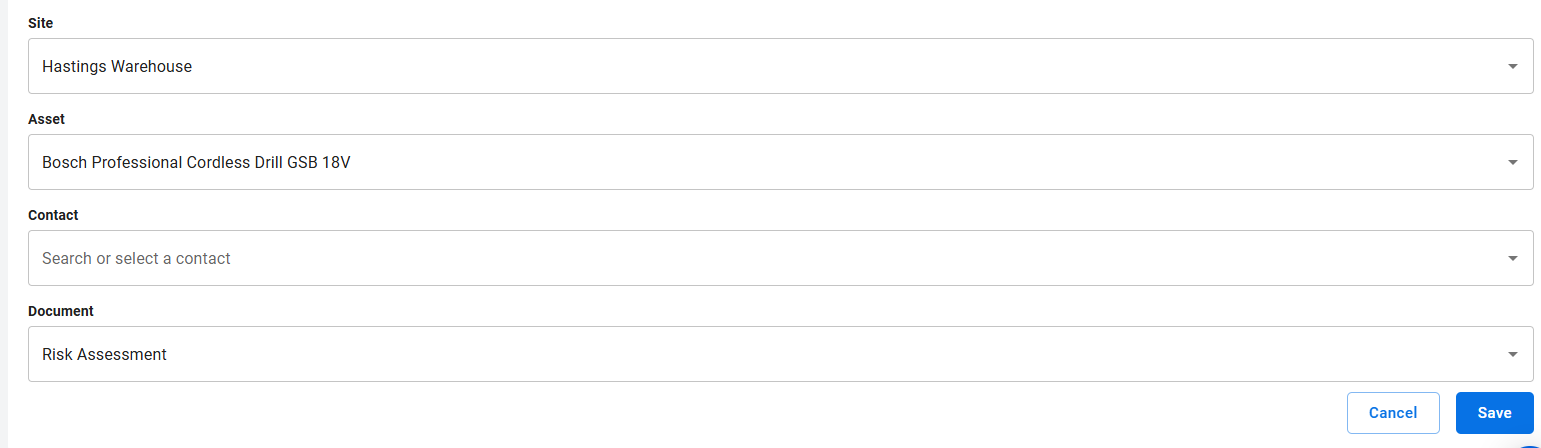
- Select the Site, Asset, Contact or Document you want to link.
- Click 'Save'.
New version: how to link a record by answering a question
In the new version, you link records to the question they're about, so it's clear which finding each record relates to.
If the template has a question that asks you to pick a record, such as 'Which Site is this?', answering it links that record to the Audit automatically. The record shows in the question's 'Related records', marked 'From answer'. To remove it, change the answer.
New version: how to relate a record to a question
You can relate a record to any question, while you're filling in the Audit or after it's submitted. The record types you can choose depend on the modules your organisation uses and what you have access to. Sites, Assets, Contacts, Events and Documents can all be related to a question.
💻 In the Vatix Workspace web app:
- Open the Audit.
- On the question, click 'Related records'.
- Click 'Relate a record'.
- Under 'Type', select the kind of record, for example 'Sites'.
- Under 'Record', select one or more records.
- Click 'Relate record'.
To open a related record, point to it and click 'Open in new tab'. To remove one you added, point to it and click 'Remove'.
📱 In the Vatix app:
- Go to 'Audits' and open the Audit.
- Under the question, tap 'Related records'.
- Tap the '+' button.
- Under 'What would you like to link?', choose the kind of record, for example 'Site'.
- Select one or more records.
- Tap 'Relate'.
To open a related Site, Asset or Event, tap it. To remove a record you added, tap the bin icon beside it, then tap 'Remove'.
New version: how to see everything linked to an Audit
Open the Audit in the Vatix Workspace web app and go to its 'Related' tab. It lists the Audit's Tasks and each type of linked record, with 'View all...' to see the full list.