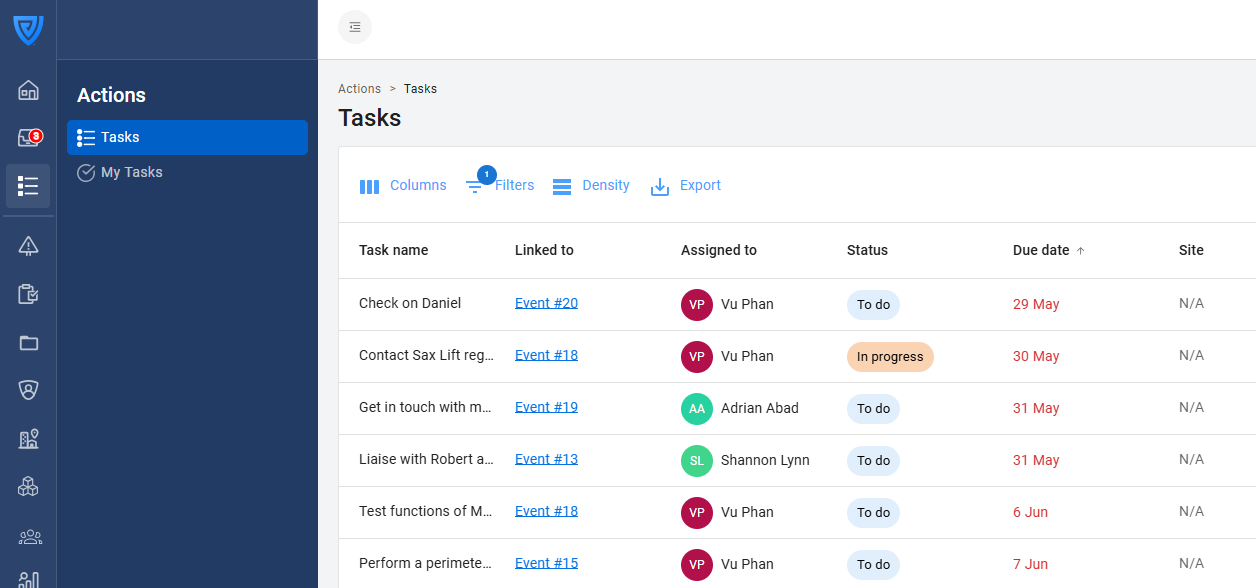
If you are an Account Owner or a Manager, you can assign corrective actions related to an event report to users in your organisation. You will also be able to track the actions that you have assigned.
Check out the written step-by-step guide below or watch our 2-minute video on assigning corrective actions.
-
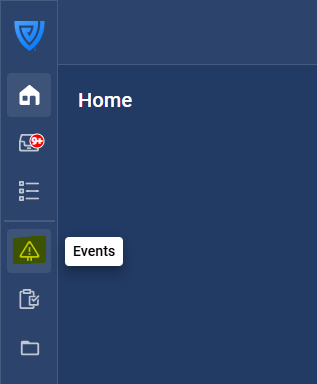
Click on the 'Events' button in the left navigation panel.
-
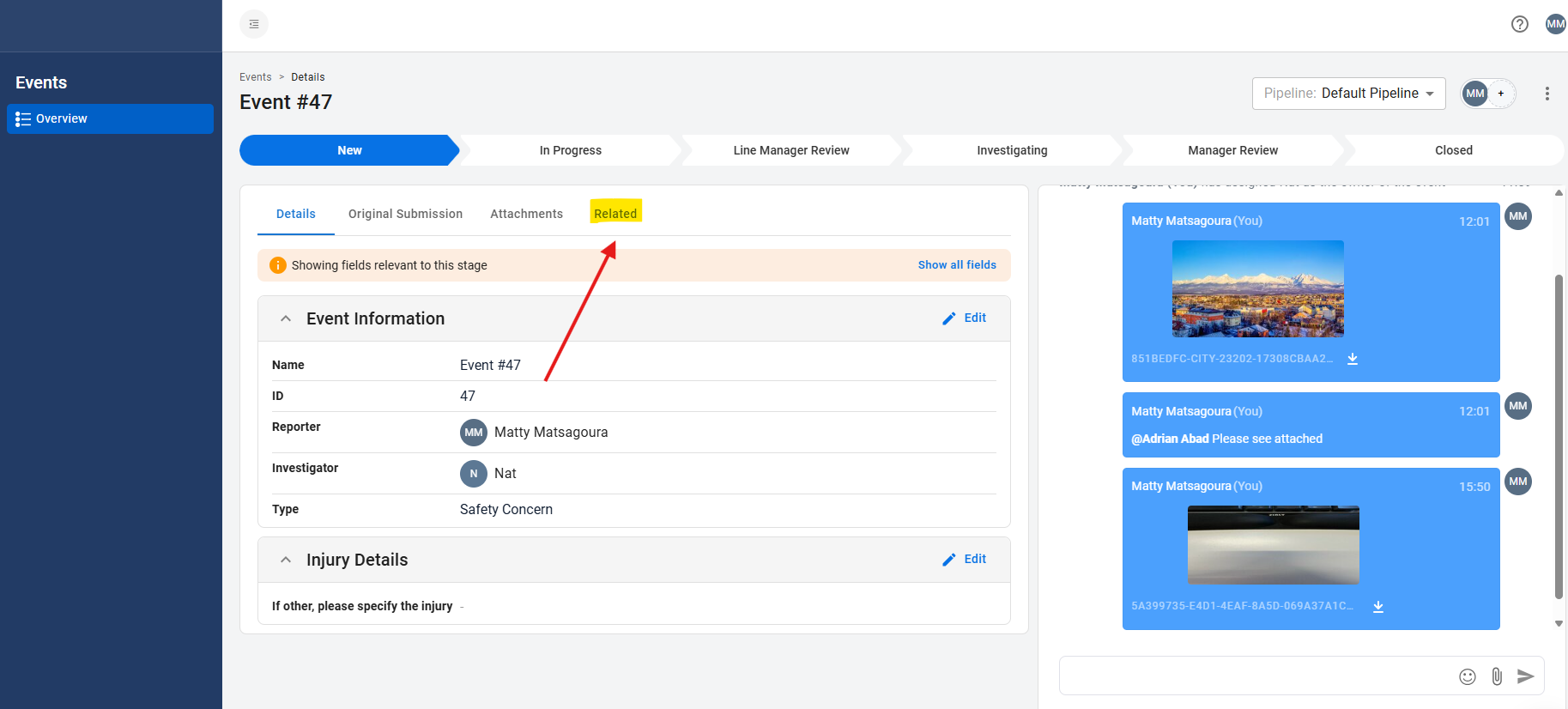
Select the relevant event report and click on the 'Related' tab.
-
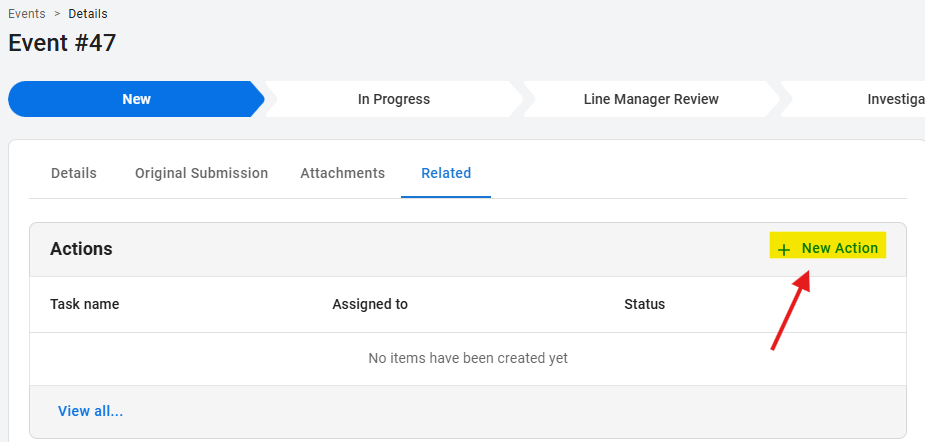
Click on 'New Action'.
-
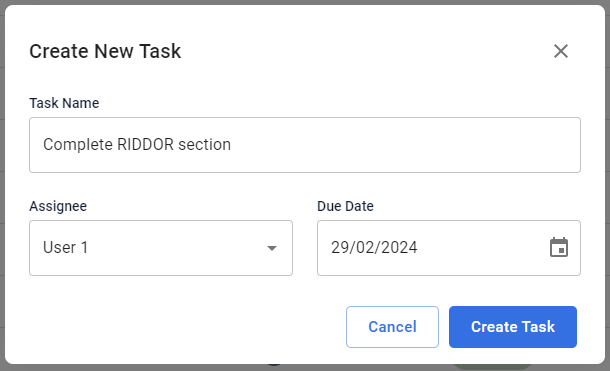
Enter the name of the task, the member of staff who you would like to assign the task to, and the due date. Click 'Create Task'. If they have their notifications enabled, this will send them an email.
How to add corrective actions that are not specifically tied to an Event report.
-
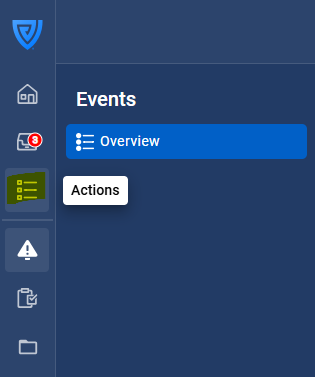
In the left navigation bar, click on 'Actions'.
-
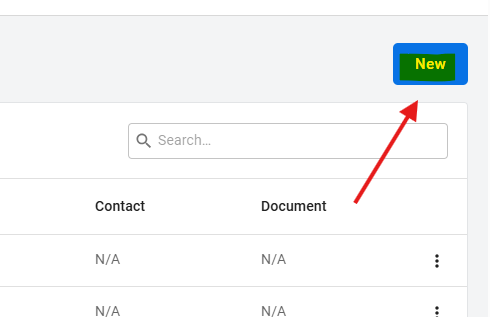
Click 'New' in the top right of the screen.
-
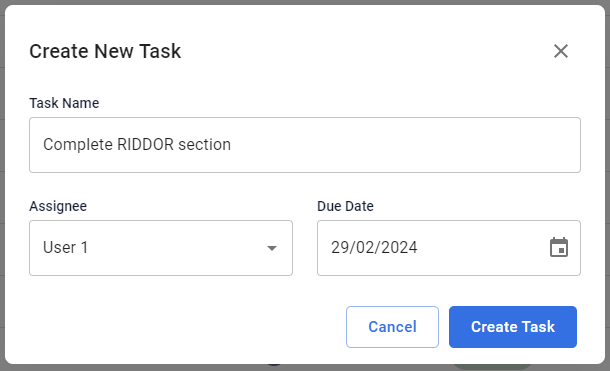
Enter the name of the task, the member of staff who you would like to assign the task to, and the due date. Click 'Create Task'. If they have their notifications enabled, this will send them an email.
Who can see the corrective actions?
If you are a Manager or Account Owner, you can check the status and progress of tasks in the Actions tab, where you will be able to view all tasks that you have assigned (in 'Tasks') or that have been assigned to you (in 'My Tasks').
Account Owners can see all the corrective actions assigned to all users in the account. As a Manager, to see the corrective actions of a group of people you will need to be set up as a Team Admin with that group of people as members of the team. For more details on user permissions, see this article.
See this article for more information on how to customise your Actions table.