
The Layout Editor is where you can control how fields are arranged and grouped in the Event Record. You can use it to group your fields into logical sections and control the order in which they appear.
Changes made in the Layout Editor define how the record is organised, but not which fields are visible to users during each stage of the follow-up process. Field visibility is controlled through Pipelines, where you can determine which fields appear at each stage of an event.
For more information on managing field visibility by stage, see this article.
Please note that reordering/restructuring your layout does not affect your underlying data or field mapping. However, removing fields from the layout does.
If you want to add new fields to your follow-up or investigation process, see this article.
To remove or hide existing fields, see this article.
Follow the step-by-step instructions or watch the video guides available below.
To reorder or restructure your layout
-
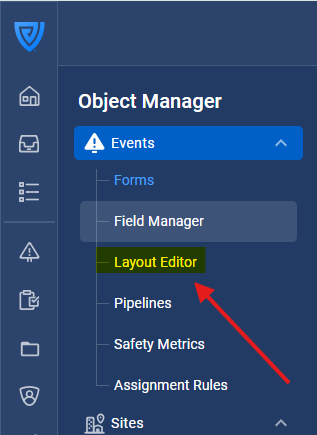
Go to Object Manager → Events → Layout Editor.
-
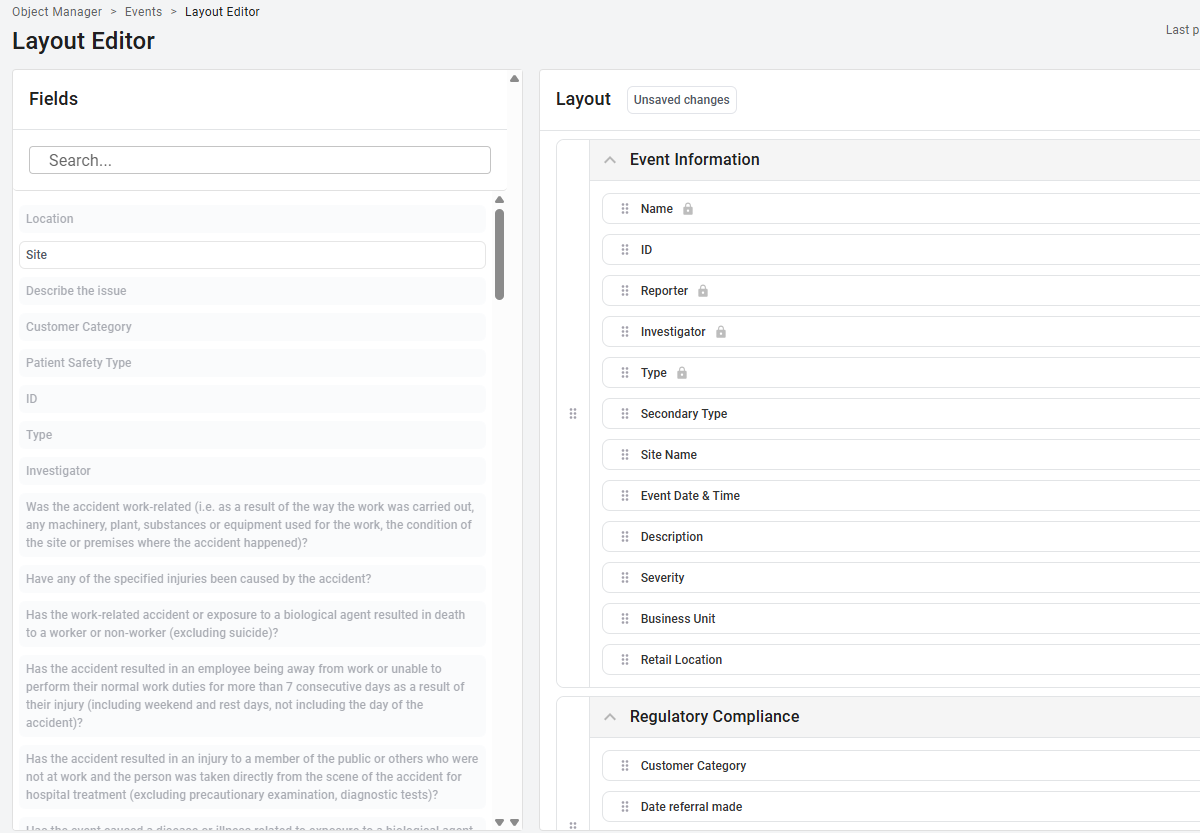
Review the list of fields and sections to determine what modifications you'd like to make. The right side displays your current layout of fields and sections, while on the left, in bold, are the fields not yet added. The greyed-out fields are already included in your layout.
-
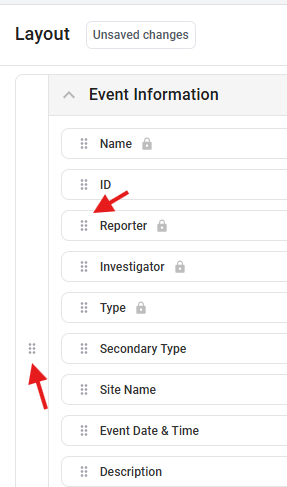
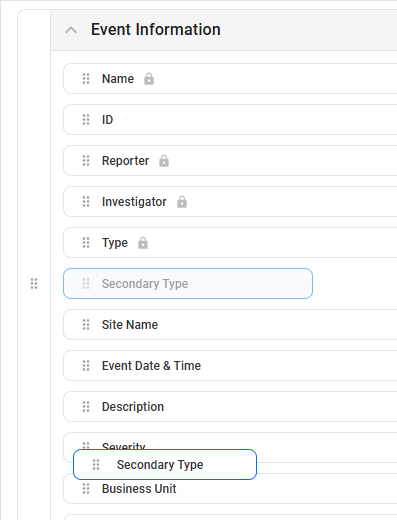
To move a field or section, click and hold the six dots to the left of the field or section name, then drag it to the new position.
-
To add a new section, scroll to the bottom and click 'Add section'

Click on 'Untitled Section' to rename it and click on the tick to confirm the change:


-
Click Publish in the top-right corner to save your changes.
Tip: Group related fields together (for example, “Incident details,” “Investigation,” or “Corrective actions”) so users can find information more easily.
Best practice
-
Use clear section names that describe what information belongs there.
-
Keep the layout simple and logical to make records easier to navigate.
-
Place the most important or frequently used fields near the top of the record.
-
Review your layout periodically to ensure it reflects your current workflows.
Tip: After publishing, open a few Events to confirm that the layout appears correctly and that all sections display as expected.