
You can add new questions to your forms at any time to capture additional information from reporters. To make sure this data is stored and visible where it’s needed, each new question should be linked to a field in the Field Manager, added to the layout, and included in the relevant pipeline.
This connection ensures that the information collected in your form flows through to the Event Record, where it can be viewed during follow-up, used in workflows, and included in dashboards and reports.
If a new question isn’t mapped to a field or the field isn’t added to the layout, the responses won’t be stored, visible in the Details tab, or available in reporting and analytics. The guide below explains how to keep everything in sync.
Follow the step-by-step instructions or watch the video guide available below.
-
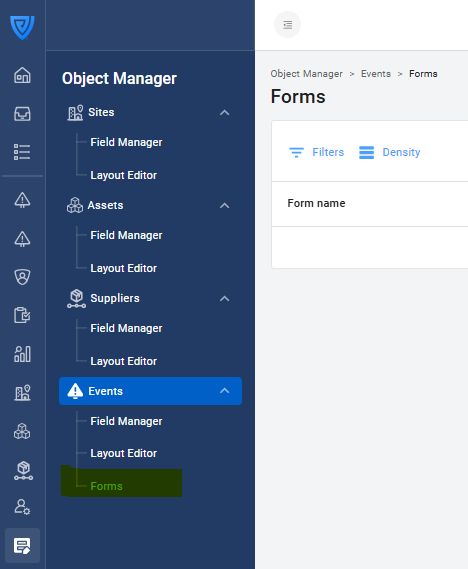
Go to Object Manager → Events → Forms.
-
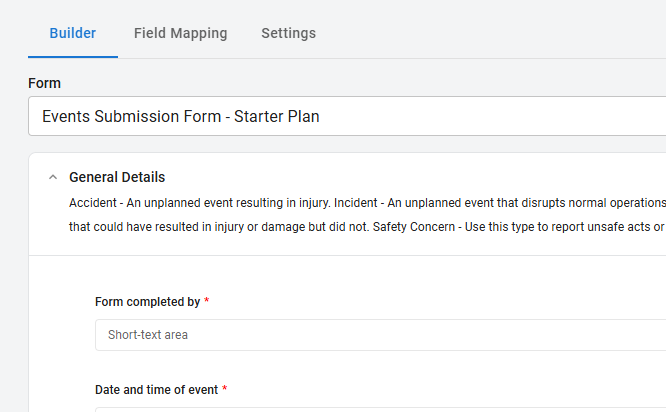
Open your form.
-
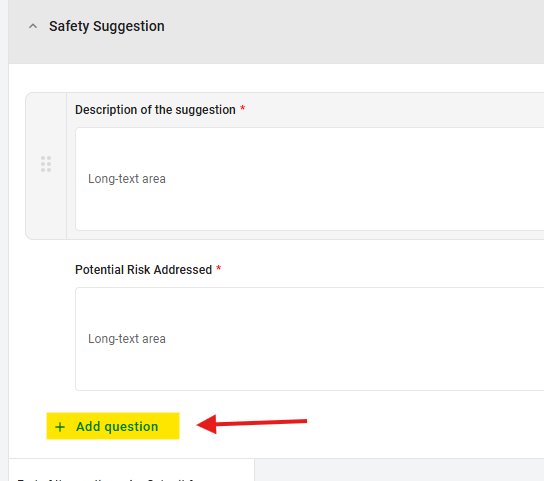
Click Add question at the bottom of a section (you can move the question later).
-
Write your question text and select the question type (for example, Short Text, Dropdown, or Date).
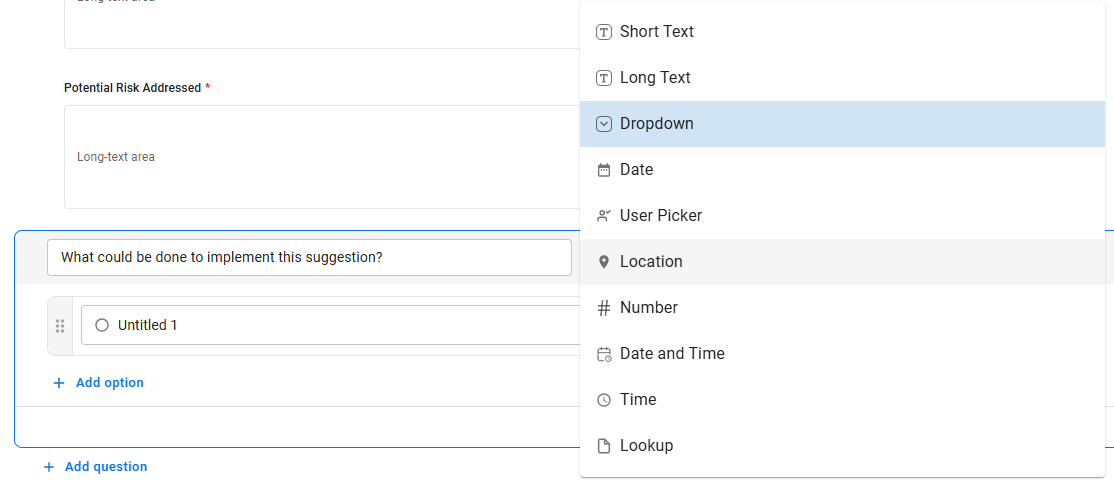
Follow this link for a written description of what the different question types are, or watch the video below for a guide on question types: -
Configure your question:
-
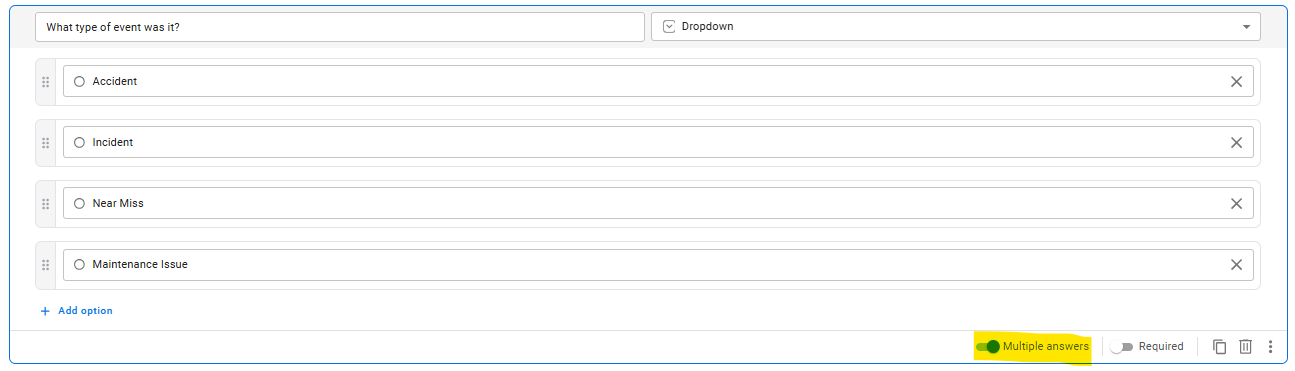
Multiple or single choice? (On Dropdown questions) Enable 'Multiple answers' (blue toggle) for multiple selections or keep it grey for single-choice.
-
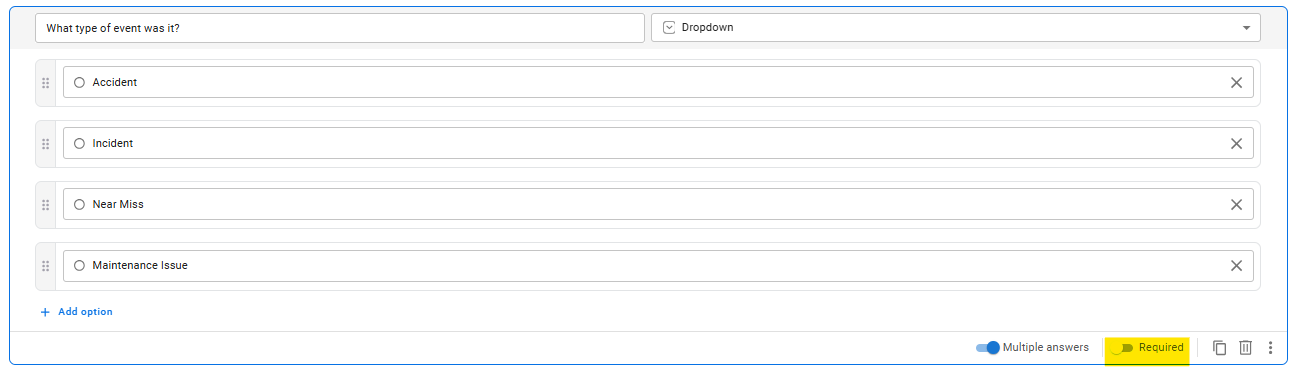
Required or not required? Enable 'Required' (blue toggle) to make a question mandatory. To make a question optional, leave it grey.
-
Duplicate similar questions to save time.
-
Delete a question using the bin icon.
-
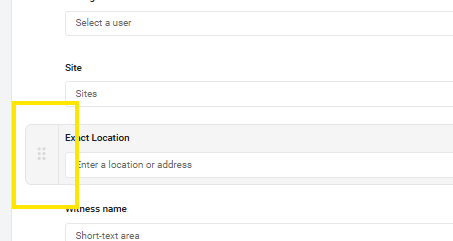
Order: To change the order of the questions, click on the 6 dots on the left of each question and drag and drop to where you want to move it.
-
-
Click Publish to save your form.
Step 2. Create the corresponding field in the Field Manager
-
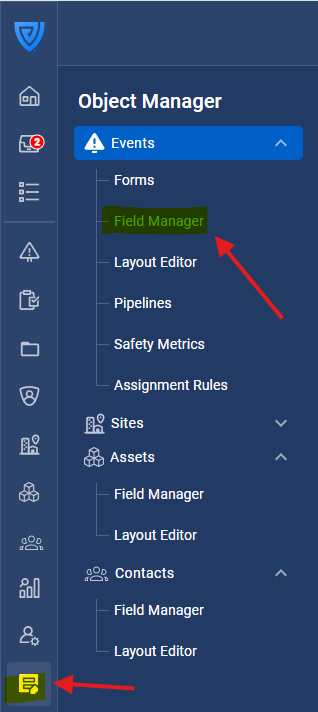
Go to Object Manager → Events → Field Manager.
-
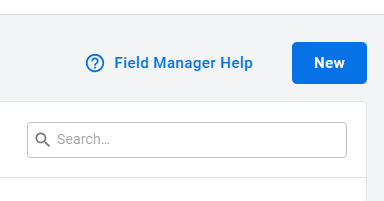
Click New field in the top right-hand corner.
-
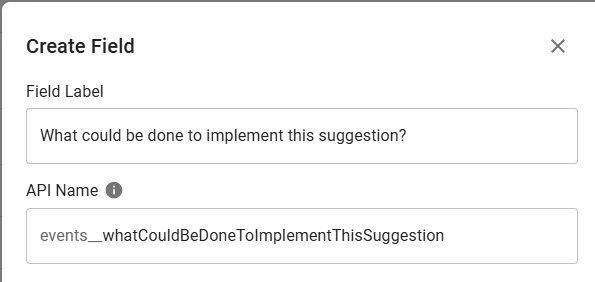
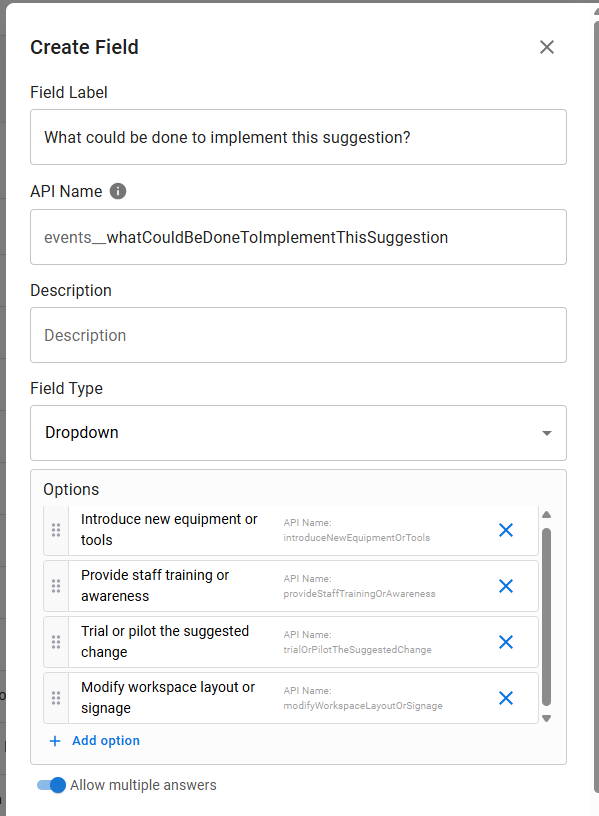
Enter a Field label that matches or closely aligns with your form question.
-
Select the correct Field type to match your question type (for example, a Dropdown question must link to a Dropdown field). Ensure that if you have made your question multiple choice, you do the same for its field counterpart.
-
Ensure that your drop-down options exactly match those in your form questions to ensure proper mapping. This includes matching case, spacing, punctuation, and any other differences. The easiest way to do this is by copying and pasting the options directly from your form question.
-
Click Create.
Step 3. Map the question to the field
-
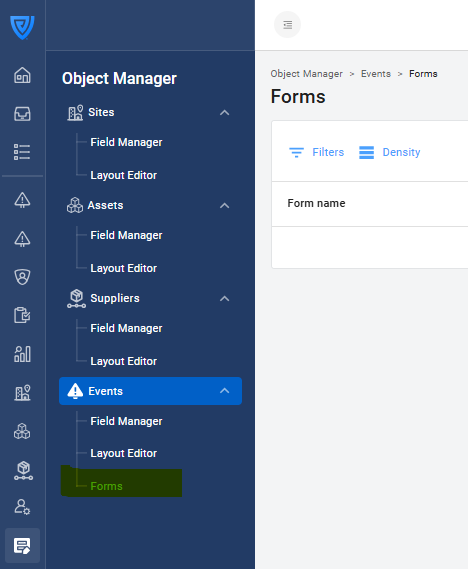
Go to Object Manager → Events → Forms.
-
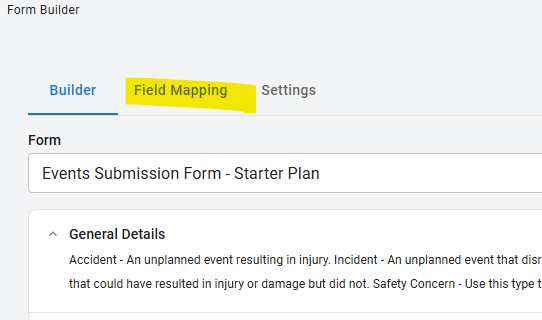
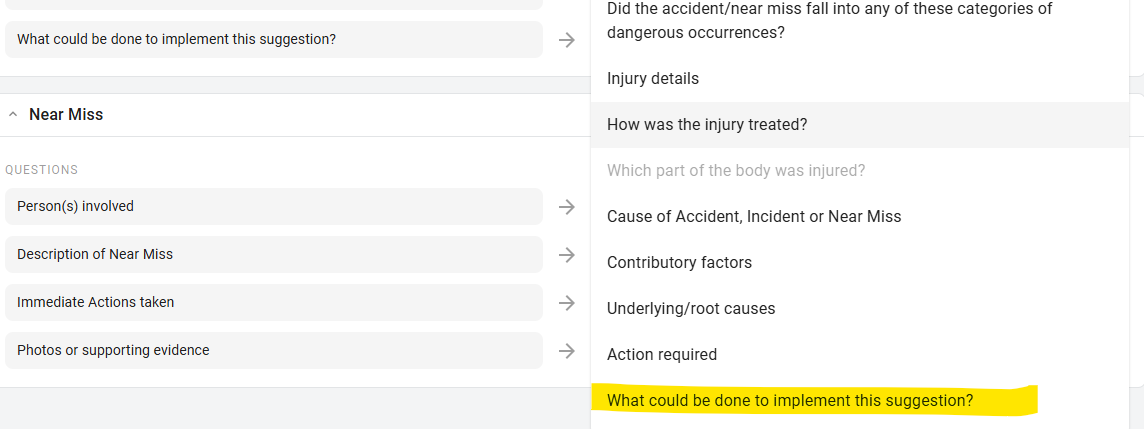
Open your form and select the Field mapping tab.
-
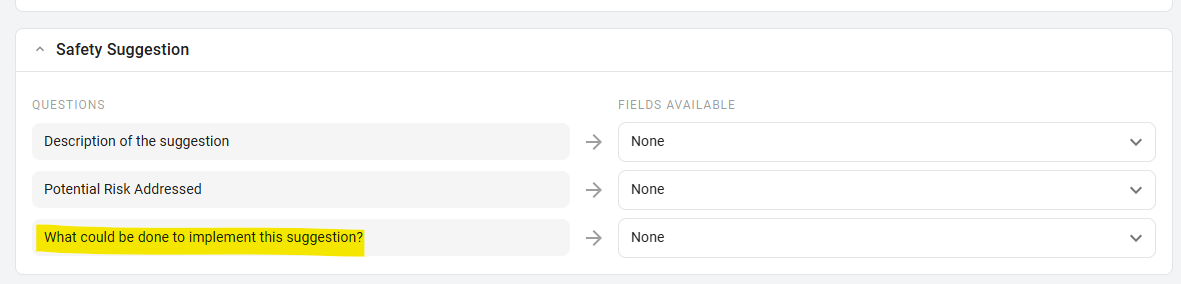
Find your new question in the list.
-
From the dropdown menu, select the field you created in the Field Manager.
-
Click Publish to apply your changes.
Step 4. Add the field to your layout
Once the field is created and mapped, you’ll need to add it to the layout.
-
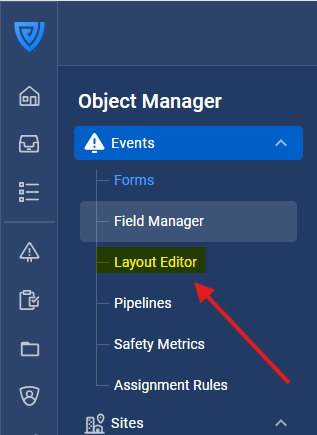
Go to Object Manager → Events → Layout Editor.
-
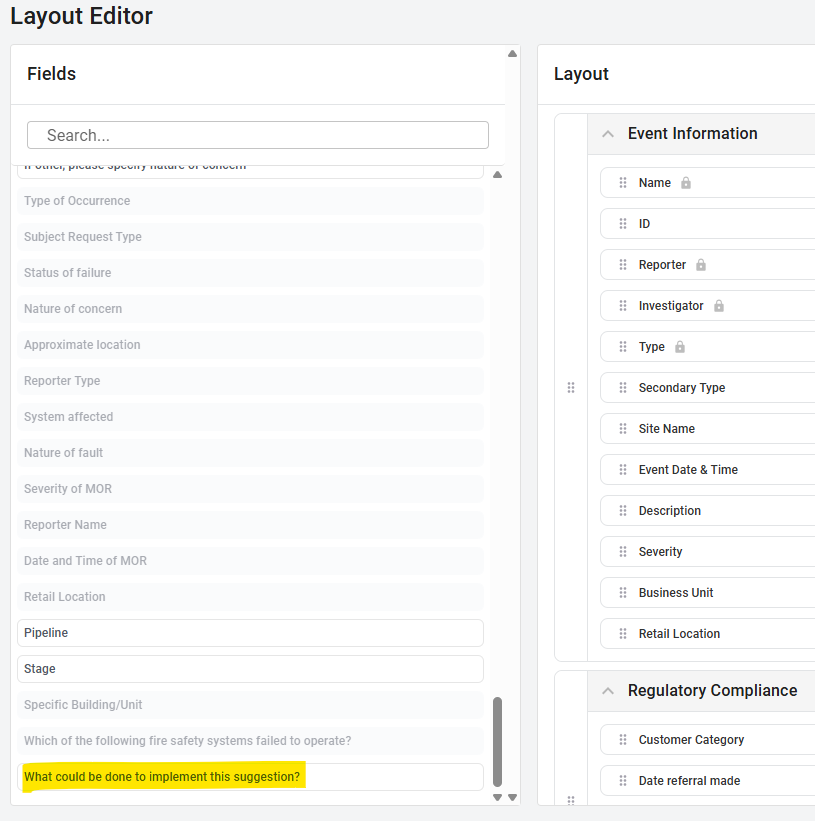
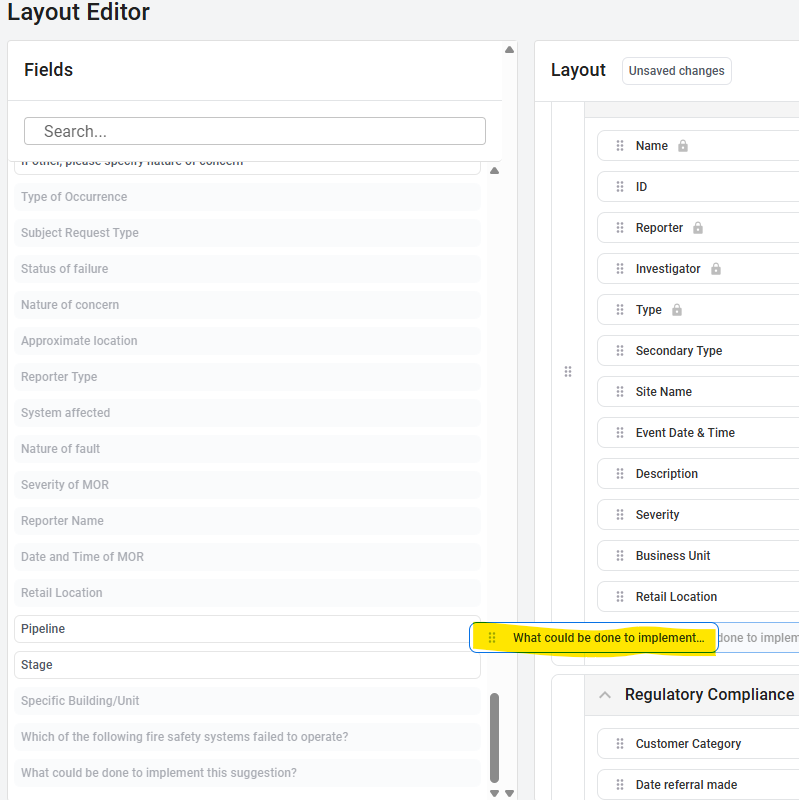
The right side of the Layout Editor displays your current layout of fields and sections, while on the left, in bold, are the fields not yet added. The greyed-out fields are already included in your layout. Find your new field in the list of available fields on the left.
-
Drag and drop it into the appropriate section of the layout.
-
Click Publish to save your changes.
Tip: Group related fields together so the record remains easy to navigate. For example, place investigation-related fields in the “Investigation” section.
Step 5. Add the field to your pipeline stages
After adding the field to the layout, make sure it appears in the relevant stages of your event workflow. Please see this article on how to select which fields to display for each stage.
Step 6. Test your changes
After mapping and adding your field to the layout, test the full setup.
-
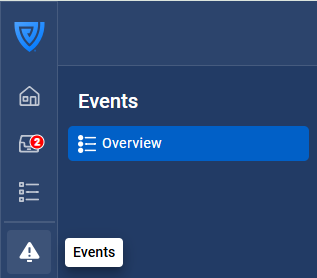
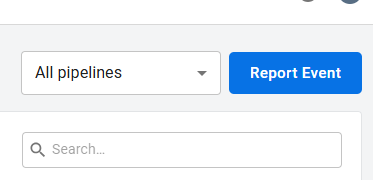
Submit a test event using the form. Navigate to Events > Report Event. Complete the questions you have just created to verify that the mapping functions as intended.
-
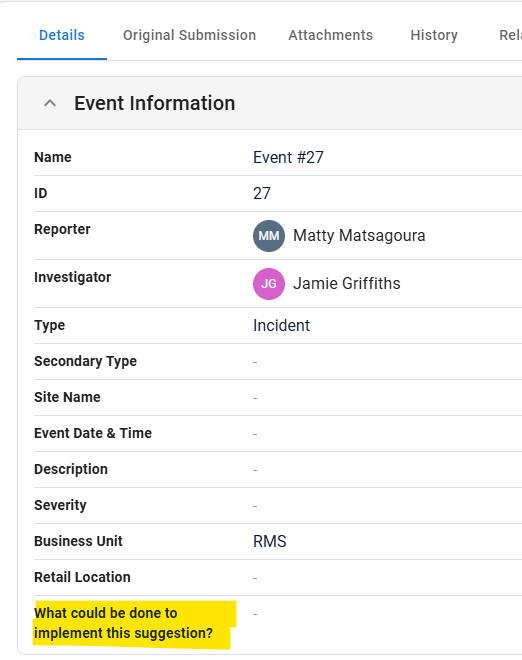
Once submitted, open the event record and check that the new field appears in the correct section.
-
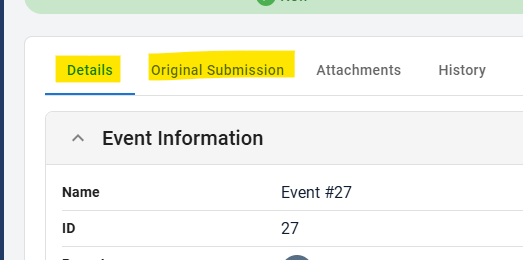
Ensure that the response you entered on the form appears in the Details tab and is included in reports where applicable. The best way to confirm this is by comparing the Original Submission tab (the information entered in the initial form) with the Details tab (the mapped fields and data from that form).
Please note that dashboard data typically takes around an hour to sync with event data, so it’s best to check this the following day.
If the response shown in the Original Submission tab does not appear in the Details tab, this usually indicates a mapping issue.
-
Use consistent names between questions and fields so mapping is easy to identify.
-
Avoid creating duplicate fields with similar names, as this can cause confusion in reports and field mapping.
-
Review your mapping and layout periodically to keep them organised and aligned with your processes.