
You can add new fields to your Event Record whenever you need to capture additional information for follow up and investigation, reporting, or analytics.
Once a new field is created, it needs to be added to your layout so it appears in the Event Record, and included in the relevant pipeline stages so users can see and complete it during the follow-up process.
Follow the step-by-step instructions or watch the video guide available below.
Follow these instructions to create a new field.
Step 2. Add the field to your layout
Once the field is created and mapped, you’ll need to add it to the layout.
-
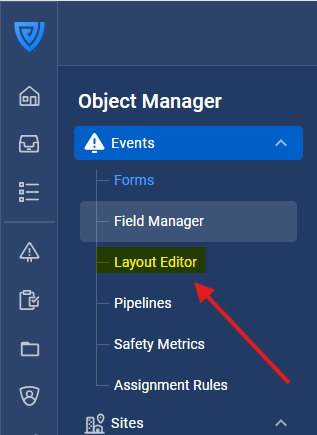
Go to Object Manager → Events → Layout Editor.
-
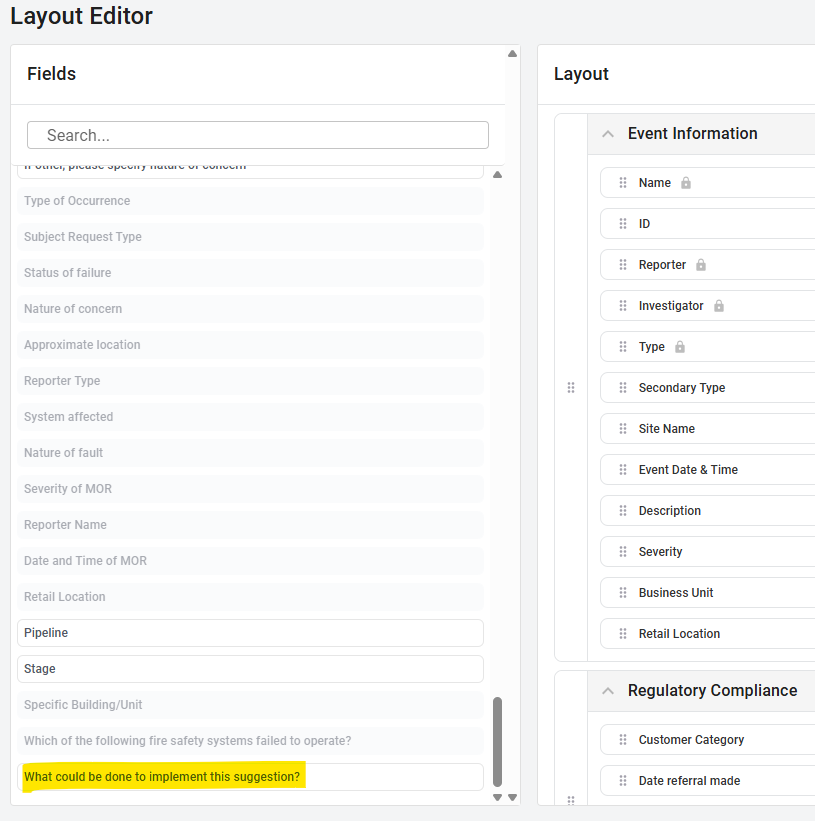
The right side of the Layout Editor displays your current layout of fields and sections, while on the left, in bold, are the fields not yet added. The greyed-out fields are already included in your layout. Find your new field in the list of available fields on the left.
-
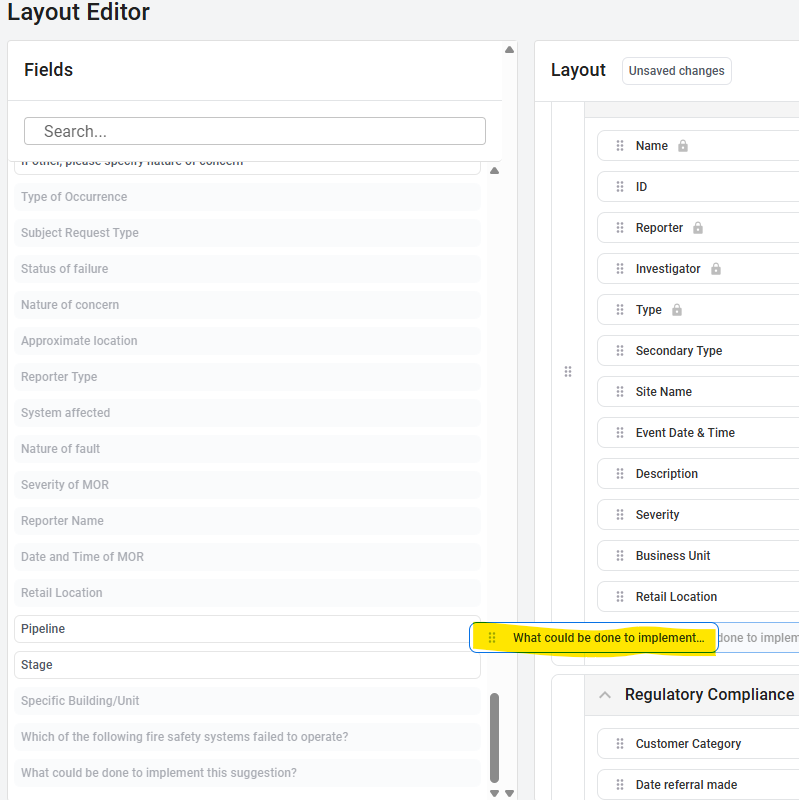
Drag and drop it into the appropriate section of the layout.
-
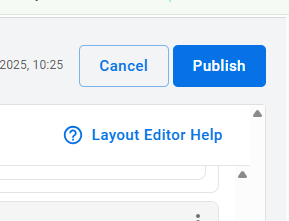
Click Publish to save your changes.
Tip: Group related fields together so the record remains easy to navigate. For example, place investigation-related fields in the “Investigation” section.
Step 3. Add the field to your pipelines
After adding the field to the layout, make sure it appears in the relevant stages of your event workflow. Please see this article on how to select which fields to display for each stage.