
Applies to user roles: Account Owner, Manager, User
Available on platforms: Vatix Workspace web app
You can keep the measures your organisation uses to reduce risk in one 'Controls library', then add the same control to every Risk it reduces. Anyone with a Risk Register licence can view the library and add controls to it.
What the Controls library shows
Go to 'Risk Register' > 'Controls library' in the left sidebar.
Each control is a row, with a column for 'ID', 'Control', 'Description', 'Category', 'Owner', 'Status' and 'Due date'. Each control gets an ID automatically, for example CTL-0017. You can use 'Columns', 'Filters', 'Density', 'Export' and 'Search' the same way as on the register. See 'How to find, filter and export Risks'.
How to add a control to the library
- Go to 'Risk Register' > 'Controls library'.
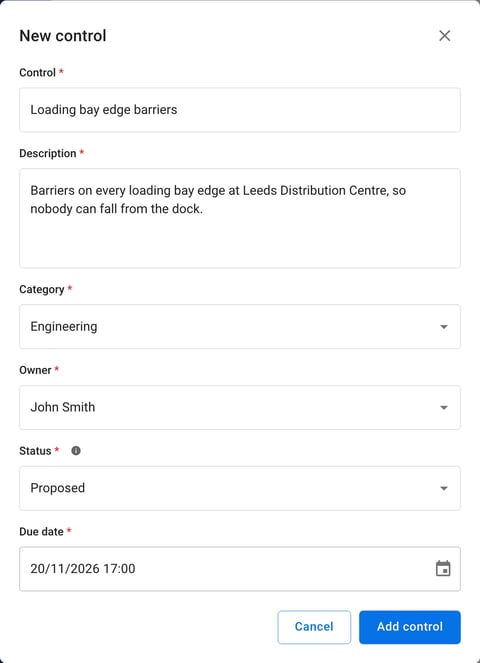
- Click 'Add control'. The 'New control' form opens.
- Fill in 'Control' (the name), 'Description', 'Category' and 'Owner'. All four are required.
- Choose a 'Status': 'In place' or 'Proposed'.
- If you choose 'Proposed', a 'Due date' field appears, with a date and a time. It's required.
-
Click 'Add control'.
When a control is 'Proposed', its owner gets a control action, due on the due date. See 'How to complete a control action'.
To add a control from the library to a Risk, see 'How to add a control to a Risk' in 'How to create and update a Risk'.
How to edit a control
- Go to 'Risk Register' > 'Controls library'.
- Click the three-dot menu on the control's row and select 'Open'.
- On the 'Details' tab, click 'Edit' on the 'Control details' section.
- Update the fields you need.
The top of the control's page shows its 'ID', 'Status', 'Category' and 'Owner', and it has 'Details', 'History', 'Attachments' and 'Related' tabs.
A control's details are the same on every Risk it's on, so your changes show on all of them. If the control has an open control action:
- Changing the owner moves the action to the new owner, who is notified.
- Changing the due date moves the action's due date.
- Changing the status to 'In place' marks the action done.
How to archive a control
- Go to 'Risk Register' > 'Controls library'.
- Click the three-dot menu on the control's row.
- Select 'Archive'.
You can also archive a control from the three-dot menu at the top right of its page.
Once a control is archived, it can no longer be added to a Risk, and its open control action is cancelled.
How to manage control categories
Categories group your controls, both in the library and in the list you choose from when you add a control to a Risk. Your organisation starts with five: Elimination, Substitution, Engineering, Administrative and PPE.
- Go to 'Risk Register' > 'Controls library'.
- Click 'Manage categories'. The 'Control categories' panel opens.
- Rename a category in place, delete one with the bin icon, or click 'Add category'.
- Click 'Save'.
Who can manage controls?
| Your role | What you can do |
|---|---|
| Account Owner | View controls, add them to the library, edit and archive them, add and remove them on a Risk, and manage categories |
| Manager | View controls, add them to the library, edit and archive them, and add and remove them on a Risk |
| User | View controls and add them to the library |
You need a Risk Register licence to see the 'Controls library'.
Related articles