
This article explains how to set up your users for the first time and how to add new users to an existing account. It is the same process for both. Please note, you must be an Account Owner to set up your users or add new users to an existing account.
To set up your Safe Pro devices or Lone Working app, you'll need to add your users on Vatix Workspace first. This is the website that accompanies the Safe Pro device and Lone Working app, where you'll be able to add users, make changes to your account and view information regarding alarms that have been raised. The Safe Pro devices and Lone Working app cannot be used to raise an alert in an emergency unless they are linked to users on this system.
Follow the step-by-step guide below or scroll to the bottom of the page for a video guide.
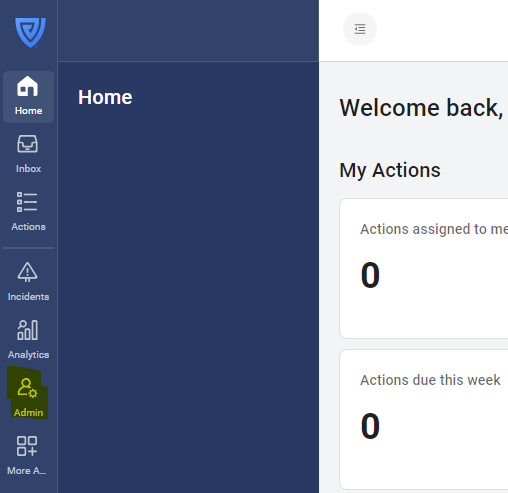
1. Click on the 'Admin' button in the navigation bar.
2. Click on the blue 'Add User' button. This is located on the top right-hand side of the screen.
3. Enter the user's name, email address and select the appropriate role for that user, depending on whether they will be a User, Manager, or Account Owner. This will determine their user permissions (the level of access to information and what they can do on the platform).
4. Select the correct product access depending on the product you have purchased. Select the toggle, and the colour will change from blue to grey.
5. Click 'Create'. This will send the user a username and password via email, enabling them to log into the platform. Once you have added all your users, you can refresh the page, and all of them will appear in the list.
To add multiple users at once, refer to this article.
6. Add the user's phone number to their profile. This is essential for Lone Working app users and highly recommended for Safe Pro users. On the same page, add the user's date of birth. This acts like a password that enables our Alarm Receiving Centre to confirm the identity of the person raising an alarm.
Congratulations! You have added your users. The next step is to link these users to an Alarm Response Profile (a list of emergency contacts) and assign them a Safe Pro device or Lone Working app licence.
Video guide:
This video shows you how to add a user.
This video shows how to set up your account start to finish.